The QR Code Print Checklist: Size, Placement, Contrast, and Testing
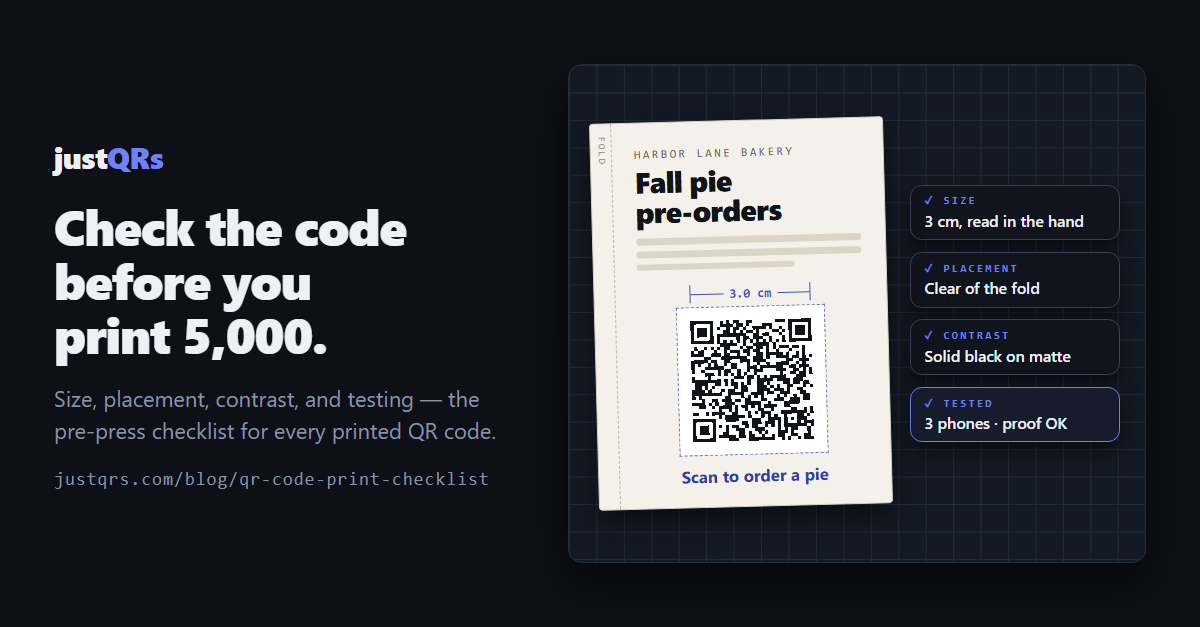
On the designer's monitor the code scanned instantly. Then it was printed three centimeters wide on glossy stock, set half an inch from the fold, and mailed to 5,000 homes. Some phones read it. Plenty didn't.
Screens are forgiving: backlit, flat, and sharp. Paper bends, gets laminated, and is read in whatever light and from whatever distance the reader happens to be in. Most QR codes that fail, fail between the approved PDF and the printed piece.
We covered the seven most common QR code mistakes a few weeks ago. This is the companion: the pre-press checklist to hand your designer and printer.
1. Decide what the code is for, before the artwork
Will the destination outlive the print run? If the code opens your homepage, a contact card, or your Wi-Fi network, a static code is fine: the destination is written directly into the pattern, it never expires, and it costs nothing. If it opens anything that might change — a menu, an offer, a PDF, a sign-up form — use a dynamic code, which points to a short link whose destination you can change after printing.
How many codes do you need? One per placement, if you'll ever want to know which one worked — the flyer, the window sign, and the mailer can each carry their own code to the same page. And keep whatever the pattern encodes short: long URLs make dense codes with tiny squares that need more print size to scan.
2. Size it from the reading distance
The working rule: a code should be about one-tenth as wide as the distance it's scanned from. Then round up — nobody complains that a code was too easy to scan.
- Business card, label, hang tag (in the hand): at least 2 cm (0.8 in)
- Flyer, menu, table tent (30–40 cm away): 2.5–4 cm (1–1.5 in)
- Poster (read from 2 m, about 6–7 ft): 20 cm (8 in)
- Window or yard sign (read from 3 m, about 10 ft): 30 cm (12 in)
Measure the code itself, not the code plus its margin. And decide the size first — the code is the one element on the page that stops working if it's squeezed.
3. Send the printer the right file
- Vector first. An SVG (or a vector PDF or EPS) stays sharp at any size and is what a print shop wants.
- If it has to be a PNG, give it enough pixels. Print wants about 300 pixels per inch at final size: a 3 cm code needs roughly 360 px, and a 20 cm poster code needs about 2,400. Below that, edges go soft. Never screenshot a code, and never save one as a JPEG — the compression smudges the squares.
- Scale it in proportion. A code stretched a few percent in one direction can stop scanning.
- Keep the quiet zone. The empty margin around the code — about four squares wide on every side — is part of the code. Make sure it survives into the layout and isn't covered by a border, a photo, or a background texture.
4. Get the contrast right on the actual material
Dark squares on a light background, always. Then account for the press:
- Brand colors shift. A color that's punchy on screen can print pale. If the code isn't obviously dark-on-light in a grayscale printout, darken it.
- Ask for the code in solid black ink. Small black elements built from all four inks ("rich black") can blur when the plates are slightly out of register. A single ink stays crisp.
- Watch the finish. Gloss lamination and foil throw glare into the camera; a matte finish or a matte spot behind the code helps. Kraft paper, clear labels, and metallic inks lower contrast — print a white box behind the code.
5. Place it where a phone can reach it
- Away from folds, trims, and bindings. Keep the code and its quiet zone inside the printer's safe area, and well clear of any fold line.
- On a flat surface. On a bottle or can, use the flattest panel and keep the code small relative to the curve.
- Where people pause and their phones are out: checkout lines, tables, waiting areas, at eye or hand height — not above a door or behind a counter.
- With a reason and a fallback. Three to six words saying what the scan does ("Scan to order a pie") and a short typed URL underneath for anyone whose camera won't cooperate.
6. Test the proof, not the screen
The PDF on your monitor proves nothing about paper. Get a physical proof at final size, on the final material if you can, and:
- Scan it with three different phones using the built-in camera app.
- Scan from the real distance and angle, in the real light.
- Confirm it opens the live, final destination — not a staging link, a draft document, or a page that asks for a login.
- Load that destination on cellular, with Wi-Fi off.
- Type the fallback URL by hand and check it lands in the same place.
7. Keep a record of what you printed
A printed code is a commitment for as long as the piece is in circulation. Keep a simple list — where each code is printed, what it points to, which account it lives in — so when a page moves or a promotion ends, you know which codes to update or which pieces to pull.
The checklist, in one place
- Static or dynamic decided; one code per placement; encoded link short
- Width at least one-tenth of the scan distance
- Vector file, or a PNG at 300 ppi at final size
- Quiet zone intact on all four sides
- Dark on light in a grayscale printout; solid black ink
- Matte, or a white box, on glossy, kraft, or clear material
- Clear of folds, trims, and curves
- Call to action and fallback URL beside it
- Physical proof scanned on three phones, at distance, in real light
- Destination live, final, and fast on cellular
- Recorded: where it's printed, where it points
Where justQRs fits
- Static codes are free forever. Download SVG — vector, sharp at any print size — or PNG up to 2,048 pixels, with error correction and quiet zone under your control (adding a logo raises error correction to H automatically). If your link is short and permanent, this is genuinely all you need.
- Dynamic codes make the press check less scary. A justQRs dynamic code encodes only its short link — justqrs.com/q/ plus seven characters — so the pattern stays sparse and prints well small. If a typo or a dead page turns up after 5,000 pieces are printed, you change the destination, not the paper.
- Your record keeps itself. Each code has its own name and scan counts — daily scans and uniques by country, city, device, OS, and browser — so you see which placements work. $9.99/month or $89/year covers 500 dynamic codes with unlimited scans and five team seats.
A free justQRs account designs and downloads static QR codes forever — no watermarks, no expiry. And if you want codes you can edit and track, every feature is free for 7 days, no card required.
Need a QR code? Generate a static code free — no account — or see what dynamic codes cost.